Sales Channels
Connect your online stores to automatically import orders, sync inventory, and link marketplace listings to your Daedalus product catalog.
Overview
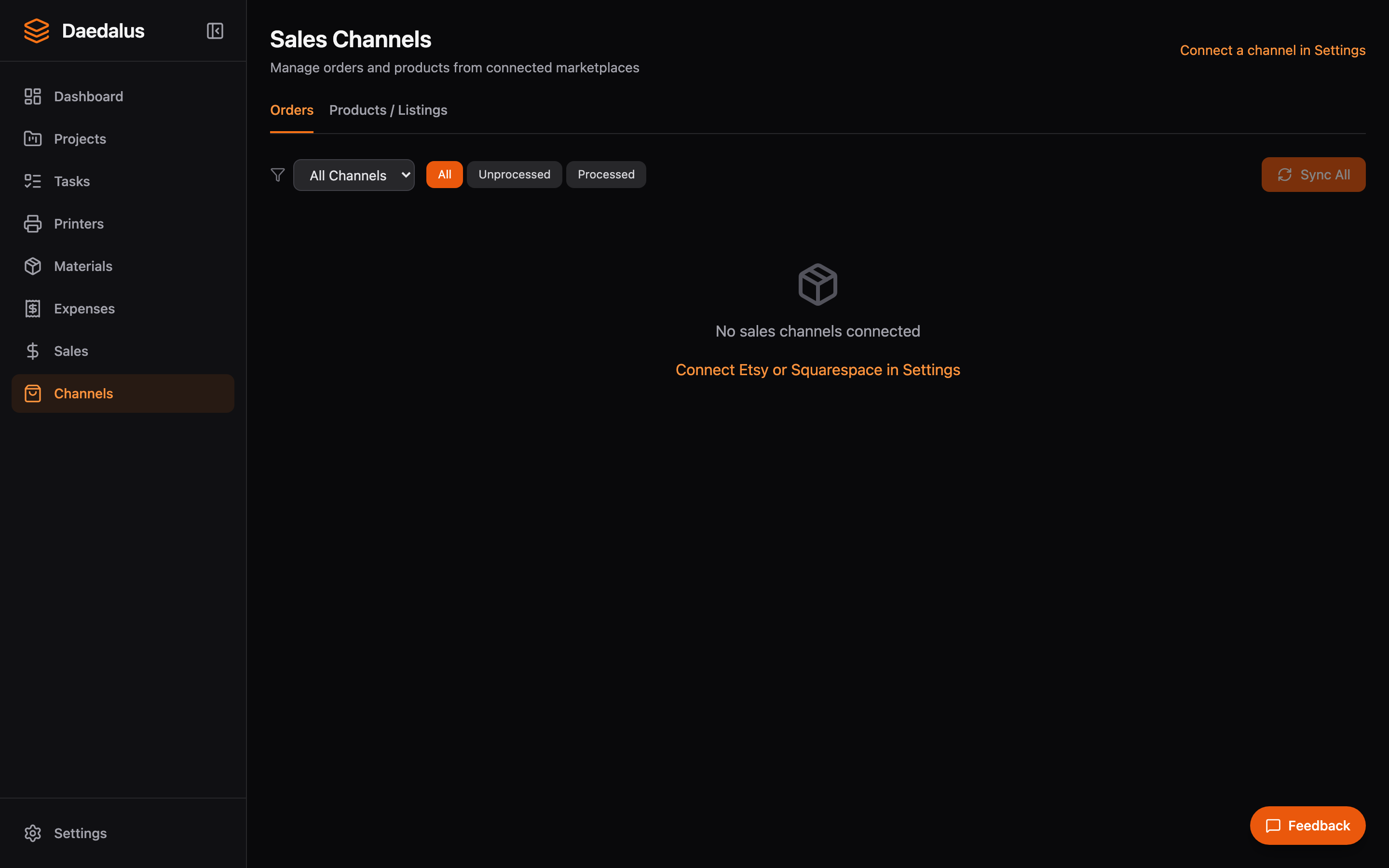
Sales channels connect Daedalus to the marketplaces where you sell. Once connected, orders are imported automatically, products can be linked between systems, and you can manage fulfillment from a single interface.
Supported Channels
Etsy
Full OAuth 2.0 integration with PKCE for secure authentication:
- Go to Settings > Integrations > Etsy
- Click Connect Etsy to start the OAuth flow
- Authorize Daedalus in your Etsy account
- Orders are synced automatically via webhooks
Etsy integration features:
- Real-time order import via webhooks
- Listing sync to link Etsy products to Daedalus projects
- Transaction fee tracking for accurate profitability
- Automatic token refresh for uninterrupted access
Shopify
OAuth integration with order and inventory sync:
- Go to Settings > Integrations > Shopify
- Enter your Shopify store URL
- Click Connect Shopify and authorize the app
- Orders begin syncing immediately
Shopify integration features:
- Automatic order import with customer details
- Product linking between Shopify and Daedalus
- Inventory level sync
- Fulfillment status updates back to Shopify
Squarespace
API key-based integration for storefront orders:
- Go to Settings > Integrations > Squarespace
- Generate an API key in your Squarespace admin panel
- Paste the API key into Daedalus and click Connect
- Orders are polled on a configurable interval
Squarespace integration features:
- Order import with line items and customer info
- Product linking to Daedalus projects
- Configurable sync interval
Linking Products
After connecting a channel, link your marketplace listings to Daedalus projects:
- Open a project and go to the Channels tab
- Click Link Product and select the matching listing from each channel
- When an order comes in for that listing, Daedalus knows which project to fulfill
Processing Imported Orders
Imported orders follow the same workflow as manual orders:
- New orders appear on the Orders page with the channel icon
- If products are linked, items are automatically matched to projects
- Process the order into tasks and dispatch print jobs as usual
- Mark as shipped to update the fulfillment status
Tip: Link your products before your first order sync. That way, incoming orders are automatically matched to the right projects and ready to process immediately.