Printers
Connect your entire fleet regardless of manufacturer. Daedalus speaks every protocol so you can manage Bambu Lab, OctoPrint, Klipper, and manual printers from one place.
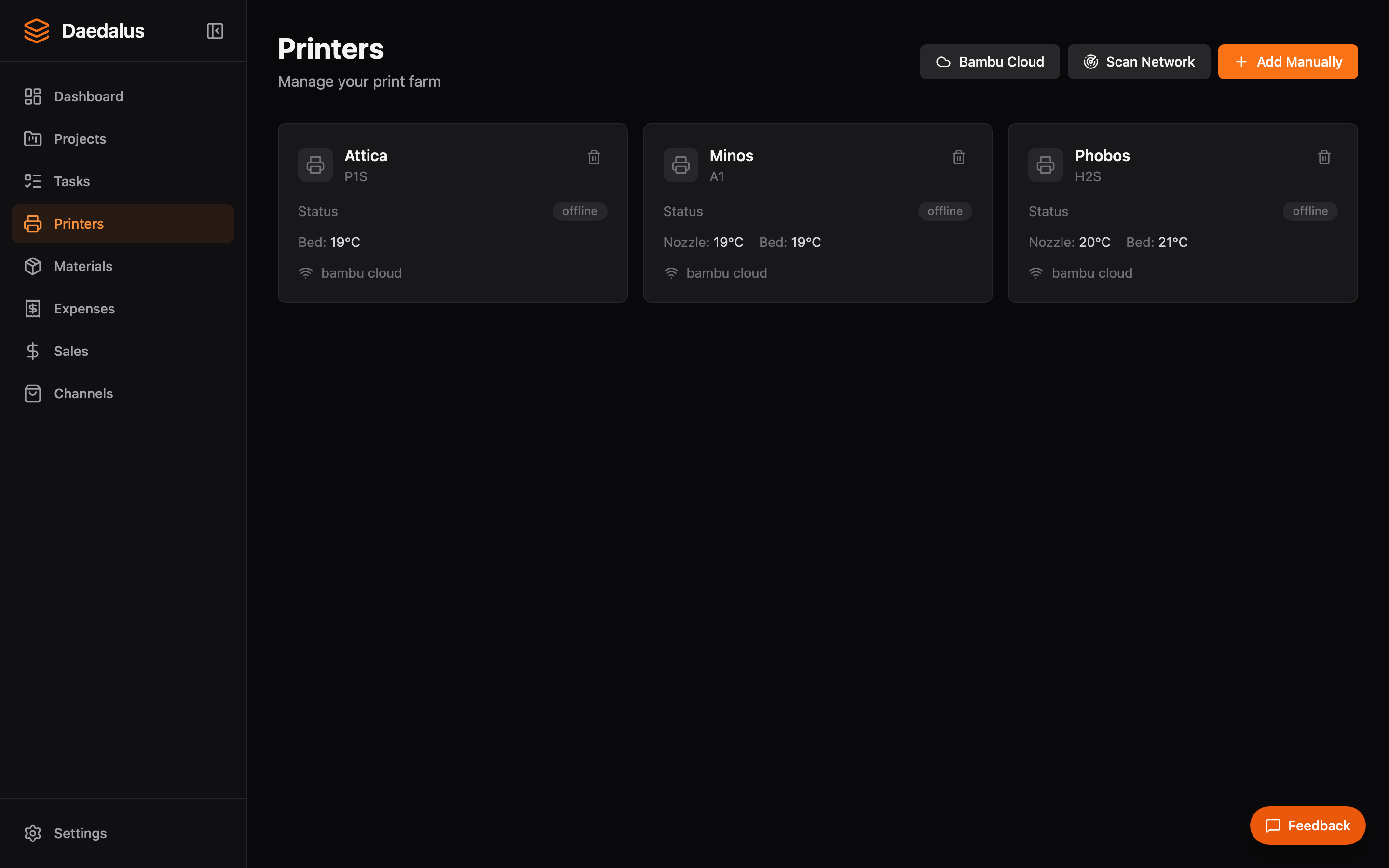
Overview
The Printers page shows every printer in your fleet with real-time status, temperatures, and active job progress. Each printer card displays its connection type, current state, and quick actions.
Adding Printers
Bambu Lab (MQTT)
- Click Add Printer and select Bambu Lab
- Enter the printer's IP address, serial number, and access code
- Daedalus connects via MQTT for real-time status, temperatures, and HMS error tracking
- AMS spool and tray data is synced automatically
Network Scan
- Click Scan Network to discover Bambu Lab printers on your local network
- Daedalus uses SSDP/mDNS to find printers automatically
- Select a discovered printer and enter its access code to connect
Bambu Cloud Pairing
- Click Cloud Pairing and sign in with your Bambu Lab account
- Select printers from your cloud account to pair with Daedalus
- Cloud-paired printers use the Bambu Cloud MQTT broker for remote access
OctoPrint
- Click Add Printer and select OctoPrint
- Enter the OctoPrint server URL and API key
- Daedalus communicates via the OctoPrint REST API for status, file upload, and job control
Klipper / Moonraker
- Click Add Printer and select Klipper
- Enter the Moonraker API URL
- Daedalus uses the Moonraker REST API for printer control and status
Manual Printers
- Click Add Printer and select Manual
- Enter a name and model for the printer
- Manual printers don't require a network connection — they're used for logging jobs without direct printer control
Printer Detail
Click any printer to open its detail view. Here you can see:
- Real-time temperature graphs (nozzle, bed, chamber)
- Active print job progress with time remaining
- HMS error codes and warnings (Bambu Lab)
- AMS tray status and loaded filaments (Bambu Lab)
- Job history with completion stats
- Printer configuration and connection settings
Printer Analytics
Each printer tracks utilization metrics over time:
- Print hours — Total time spent printing
- Job count — Number of completed and failed jobs
- Success rate — Percentage of jobs completed without failure
- Material usage — Total filament consumed in grams
Tip: Bambu Lab printers provide the richest data via MQTT, including real-time layer progress, AMS spool weights, and HMS health alerts. If possible, connect via LAN for the lowest latency.