Tasks & Print Jobs
The core production workflow. Tasks track what needs to be printed, print jobs execute the work on your printers, and auto-dispatch keeps everything moving.
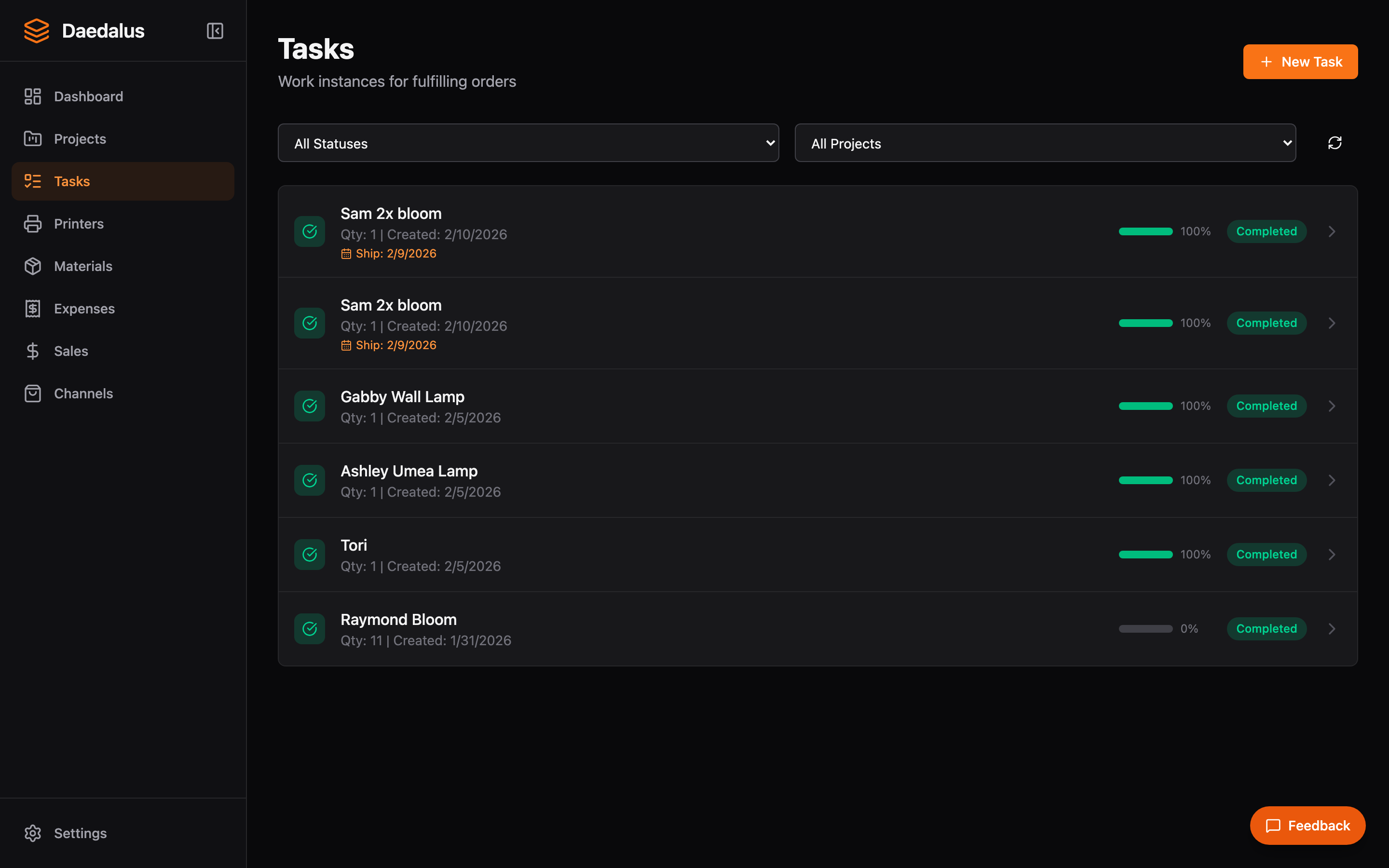
Overview
When you process an order, Daedalus creates tasks — one for each order line item. Each task has a checklist of parts that need to be printed. You can then create print jobs from checklist items and dispatch them to printers manually or automatically.
Task Lifecycle
| Status | Description |
|---|---|
| Pending | Task created, no work started |
| In Progress | At least one print job is active |
| Completed | All checklist items printed successfully |
| Cancelled | Task was cancelled |
Checklists
Each task has an auto-generated checklist based on the project's parts definition. For a product with 3 parts at quantity 2, you get 6 checklist items.
- Each checklist item represents one instance of one part
- Items track their status: pending, printing, completed, or failed
- Click a checklist item to create a print job for it
- Checklists can be regenerated if the project definition changes
Print Jobs
A print job represents a single print on a single printer. Jobs track the full lifecycle from creation to completion:
| Status | Description |
|---|---|
| Queued | Job created, waiting to be sent to a printer |
| Sending | File being uploaded to the printer |
| Printing | Printer is actively executing the job |
| Completed | Print finished successfully |
| Failed | Print failed (can be retried) |
| Cancelled | Job was manually cancelled |
Job Events
Every print job maintains an immutable event log recording:
- Status transitions with timestamps
- Printer assignment and material used
- Progress updates during printing
- Error messages if the job fails
- Material cost snapshot at the time of printing
Auto-Dispatch
Auto-dispatch automatically assigns queued print jobs to available printers based on:
- Material compatibility — The printer must have the required filament loaded
- Printer constraints — The part may specify which printers can print it
- Printer availability — The printer must be idle and online
When a match is found, Daedalus presents a dispatch request with a human-in-the-loop confirmation step. You can confirm, reject, orskip each dispatch suggestion.
Creating Print Jobs
- Open a task and find the checklist item you want to print
- Click the Print button on the checklist item
- Select a printer and confirm the material
- The job enters the queue and will be dispatched when the printer is ready
Retry on Failure
If a print job fails, you can retry it. Daedalus creates a new job linked to the original via a retry chain, preserving the full history of attempts.